 WEEK 2 · WATCH & CONNECT · 7:35
See it. Then try it.
Play when ready.
Pause to discuss.
(opens a new tab)
Week 2Mission ControlFind it. Check it. Keep it.
 Week 2Mission Control
Start with what you know.
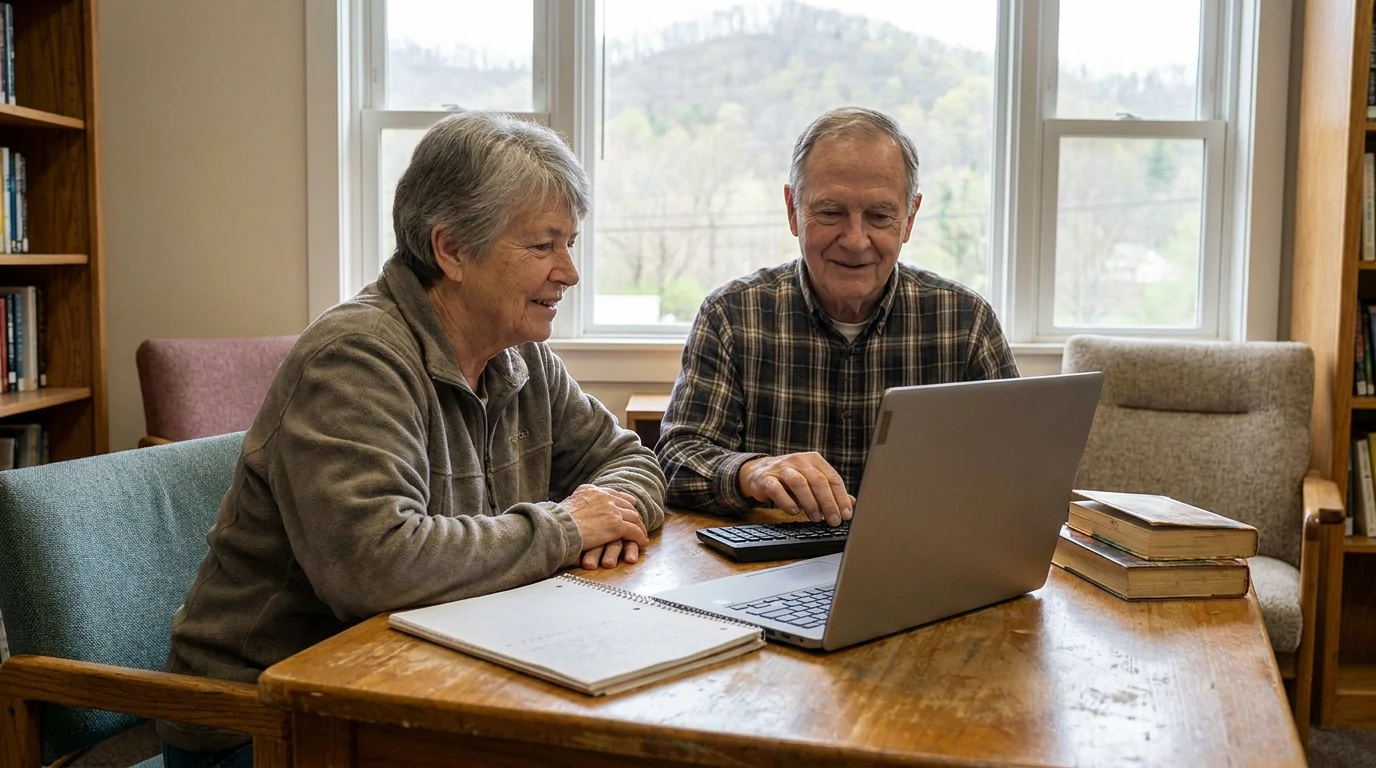
A neighbor in Beckley needs computer help. What would you check before sending them across town?
Share one experience. Passing is welcome.
Week 2Mission ControlYour four missions.
- AAsk well, then check it
- BComplete a form carefully
- COrganize and recover a file
- DShare only the access needed
- ECommunity resource folder
Tell → Show → Do → Review
Week 2Browser · GoogleAsk well, then check it
- 1Ask in full sentences: what you need, where, what matters.
- 2An AI answer is a lead from many pages. It can sound sure and be wrong.
- 3Open the source: who published it, when, does it fit?
Week 2Browser · GoogleWatch: ask well, then check it
Say what you need, where you are and what matters, as you would to a librarian. A follow-up narrows the answer. You do not have to start over.
Treat the answer as a lead. It is a quick summary of many pages and can be wrong, old or about another town. Look for the links beside or beneath it.
Open the organization's own page and check who published it and when. When the answer and the page disagree, trust the page, then phone to confirm before you travel.
Week 2Browser · GoogleYour turn: Mission 2A
A broad question: computer help
A checked answer and a source trail
- Ask a full-sentence question with a service, a town and one detail.
- Ask one follow-up. Open one source link beneath the answer.
- Find one detail the page confirms and one it does not.
Week 2Browser · GoogleRound 2: Rescue the weak question
- Take three weak questions: help, computer class, library.
- Rewrite each with a service, a place and one detail that matters.
- Ask your best rewrite. Compare its answer with the weak one.
Done early? Ask the same question two different ways. Note what changed.
Week 2Worksheet · fictional answer and pageRound 3: Catch the error
- Read the fictional AI answer on your worksheet.
- Check each claim against the fictional library page.
- Mark each claim: confirmed, wrong, or not on the page.
Done early? Write the one question you would ask the library by phone.
Week 2Worksheet · six sample questionsRound 4: Safe to ask?
- On your worksheet, read six things someone might type into a question.
- Sort each one: fine to ask, or keep it out of a question.
- Rewrite one unsafe question so it works without private details.
Done early? Write a safe question about a benefit or clinic near you.
Week 2Browser · GoogleThe AI answer says the library is open until 9 p.m. Its own page says until 8 p.m. What next?
Choose an answer, then explain your reason.
Week 2Practice formComplete a form carefully
- 1Read required fields before typing.
- 2Give only the information needed.
- 3Read the confirmation; keep a reference.
Week 2Practice formWatch: complete a form carefully
A name and topic are required. A Social Security number is not needed.
A required-field message means the request is not complete.
This local exercise cannot book a real appointment. Real forms need their own confirmation.
Week 2Practice formYour turn: Mission 2B
A request with missing information
A clear practice confirmation
- Open the practice form; use fictional details.
- Try a blank required field, then correct it.
- Read the confirmation and explain its limit.
Week 2Worksheet · fictional request formRound 2: Needed, not needed, risky
- Read the eight fields on a fictional computer-help request form.
- Sort each field: needed, ask why first, or do not give.
- Explain one choice to a partner.
Done early? Write what you would say to a volunteer who asks for a field you marked do not give.
Week 2Worksheet · fictional privacy noteRound 3: Read before you send
- Read the short privacy note on your worksheet.
- Answer four questions: who collects it, why, how long, who sees it.
- Decide whether you would send the form, and why.
Done early? Rewrite the note's last sentence so it is clearer for a first-time reader.
Week 2Practice formThe practice page says “No request was sent.” What happened?
Choose an answer, then explain your reason.
Week 2File ExplorerOrganize and recover a file
- 1Use a clear folder and file name.
- 2ZIP packages files; extract before editing.
- 3Deleted file? Recycle Bin. Wrong edit? History.
Week 2File ExplorerWatch: organize and recover a file
Save a named file, close it, and reopen it from the folder.
Compression is not encryption or a separate backup. Edit the extracted copy.
For a bad edit in a cloud file, inspect version history; alert collaborators first.
Week 2File ExplorerYour turn: Mission 2C
A file lost among downloads
A named file you can reopen
- Save and reopen a clearly named practice file.
- ZIP a copy and extract it into a new folder.
- Delete the spare file, then restore it.
Week 2Worksheet · ten messy file namesRound 2: Rename the mess
- On your worksheet, read ten messy file names.
- Write a clear new name for each: subject, then what it is, then a version or date.
- Choose a folder for each: Community resources, Household or Photos.
Done early? In File Explorer, make Household and Photos folders in Documents, beside Community resources.
Week 2File Explorer · DocumentsRound 3: Find it fast
- Open Documents. Click the search box and type part of a file name.
- Click the Date modified heading to sort. Find the file you changed last.
- Right-click Community resources and choose Pin to Quick access.
Done early? Rename your ZIP file so a stranger would know what it holds.
Week 2Worksheet · four problemsRound 4: Which tool fixes it?
- On your worksheet, read four problems: deleted file, wrong wording, five files to email, dead computer.
- Choose the tool for each: Recycle Bin, version history, ZIP, or backup.
- Say why a ZIP does not fix the others.
Done early? Write a fifth problem and the tool that fixes it.
Week 2File ExplorerThe file exists, but a paragraph was replaced. Where first?
Choose an answer, then explain your reason.
Week 2Shared fileShare only the access needed
- 1Viewer reads; commenter suggests; editor changes.
- 2Check the account, owner and named recipients.
- 3Sync copies deletions; keep a separate backup.
Week 2Shared fileWatch: share only the access needed
If commenting is unavailable, agree on feedback another way; do not grant editing by habit.
Keep one shared copy and verify the intended person can open it.
Read-only limits changes. Sync can spread deletion. A separate backup supports recovery.
Week 2Shared fileYour turn: Mission 2D
One file; three different jobs
Reader, reviewer and coauthor roles
- Assign access to a reader, reviewer and writer.
- State who owns the central copy.
- Explain sync versus a separate backup.
Week 2Worksheet · six sharing situationsRound 2: Role cards
- On your worksheet, read six sharing situations.
- Choose the least access that does the job: Viewer, Commenter, Editor, or no sharing.
- Say what could go wrong if you chose Editor by habit.
Done early? Write a sharing situation of your own and the role it needs.
Week 2Worksheet · three situationsRound 3: Delete it. Then what?
- On your worksheet, read three delete situations.
- Say what sync does, what a backup does, and what version history does.
- Choose the best protection for each.
Done early? Explain sync and backup to a partner as if to a neighbor.
Week 2Shared fileA neighbor only needs to read the handout. Which access?
Choose an answer, then explain your reason.
Week 2Browser · File Explorer · WordCapstone: Community resource folder
Pick a different service than before: a food pantry, a bus route, tax help or a clinic. Use everything from today.
Then swap notes with a partner and test them.
Week 2Browser · File Explorer · WordBuild your folder
- Ask a question. Check one source. Write the five-field source note.
- Save the note in Documents as a clearly named file in Community resources.
- ZIP the folder. Write who gets which access if you shared it.
Done early? Add a second source and mark which one you trust more.
Week 2Browser · File Explorer · WordCan your partner follow your trail?
Swap your note only, with no browser history. Can your partner find the source page and your detail?
Fix what the note was missing. Then say what you will do differently next time.
Week 2Mission ControlShow the evidence.
Choose one local service. Save a source trail and explain what you still need to confirm.
Explain one choice. Show one result. Name your next step.
Week 2Mission ControlTake one useful thing home.
Choose one local service. Save a source trail and explain what you still need to confirm.
Week 2Mission ControlMission complete.
You practiced. You checked. You can explain your choices.